
Animate Photo
turns still photos into animated videos
Freemium

gptimage25.ai
AI image generator and editor with Flare and Sunburst models
 Visit website
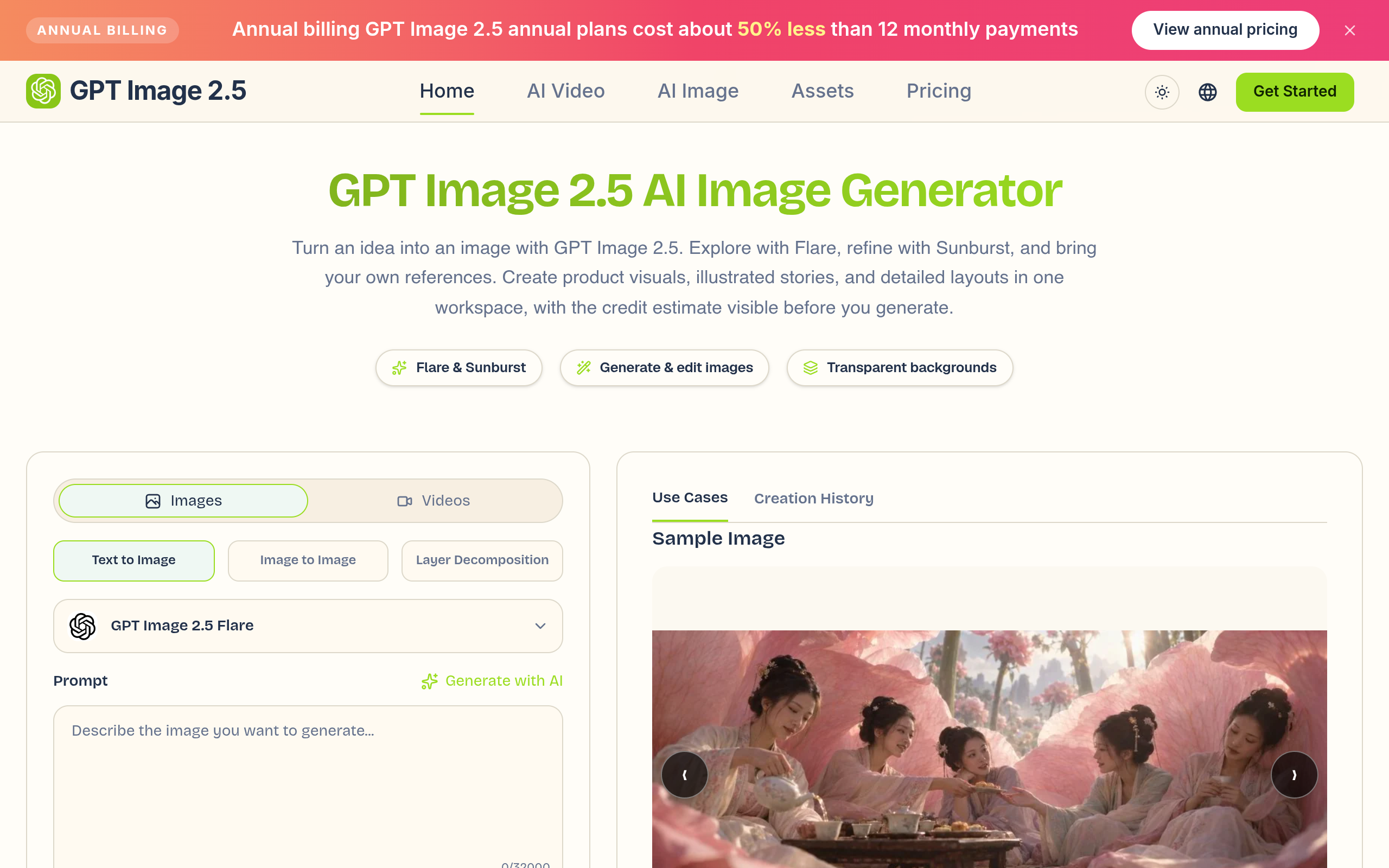
GPT Image 2.5 - ai is an independent workspace for using GPT Image 2.5 through fal endpoints to create and edit images. It combines image generation and revision in one interface, offering two model choices: Flare for everyday creation and quick exploration, and Sunburst for intricate visual detail or tighter editing control. The workspace supports text-to-image, image-to-image, transparent backgrounds, and layer decomposition, and shows a credit estimate before each generation. No separate account with fal is required, according to the page.
Give the tool a subject, setting, composition, and lighting direction. Put exact headline wording in quotation marks. For edits, upload your references and name both the requested change and the details to preserve. Separate essential requirements from optional styling.
The workspace starts with Flare, square 1K output, medium quality, and PNG. That combination currently quotes 4 credits for one image. Change quality, dimensions, or quantity and read the updated estimate before submitting. The page notes that a square 1K image at medium quality costs 4 credits and varies with settings.
Inspect the result for spelling, subject identity, edges, and composition. Continue with one specific change instead of rewriting the entire brief. Compare the revised picture with the previous version, then check its appearance in the actual page or campaign.
Flare is presented as the general-purpose choice for everyday creation and quick exploration, with natural lighting, rich textures, and complex compositions. Sunburst is precision-focused with longer generation times, intended for final compositions, demanding layouts, or focused edits.
The workspace supports text-to-image, image-to-image, and layer decomposition. Editing supports up to sixteen reference images and an optional PNG mask.
The tool supports transparent, opaque, and automatic backgrounds. Choose PNG or WebP when transparency matters, and JPEG for opaque delivery.
You can specify headline text first, supporting labels second, and decorative elements last. The page includes a dense official poster example and recommends proofreading generated text before publishing.
Flare editing can combine two supplied artworks into a shared scene, while Sunburst editing can change specific elements like clothing on a painted portrait. References guide the request but do not replace a precise instruction.
Quality options include auto, low, medium, high, xhigh, and max. Custom dimensions use multiples of sixteen, with a maximum edge of 3840 pixels and a total pixel limit. The workspace validates each selection.
Build a small creative brief around the product, audience, and placement, then compare a few visual directions. Keep the product silhouette and important markings in view, and review the finished image inside the actual storefront layout.
Write a shared description of the subject before creating a collection. Reuse that description while changing one visual variable, such as palette or illustration medium, and keep camera angle and framing explicit so comparisons remain useful.
Use a short, observable instruction that tells the tool which part should change and which visual relationships should stay intact. The optional mask helps define an area, and incremental changes make it easier to inspect edges, shadows, and repeated details.
Use the example of one subject across a grid of visual styles to plan illustrated collections with a consistent subject and repeated framing.
Describe materials concretely—brushed metal, translucent glass, matte paper, or woven fabric—and add a light source and camera angle. For product work, compare highlights and silhouettes against the reference.
Start with Flare for everyday exploration. Select Sunburst when finer detail or tighter editing control matters more than turnaround time. Both variants offer text generation and reference-image editing here.
Yes, editing supports up to sixteen references and an optional PNG mask. Explain how the inputs relate to one another and check the uploaded previews before starting the request.
Quality options include auto, low, medium, high, xhigh, and max. Custom dimensions use multiples of sixteen, with a maximum edge of 3840 pixels and a total pixel limit. The workspace validates each selection.
Credits depend on quality, dimensions, and image count. A square 1K image at medium quality currently costs 4 credits. The displayed quote updates with your settings; review it before every generation.
The tool generates and edits still images. You can use a finished image in a separate video workflow, but motion and audio are not outputs of these image endpoints.
fal marks GPT Image 2.5 endpoints for commercial use. Your project still needs appropriate rights to uploaded references and depicted material. Review the final image, including any text and branding, before publication.