
TextSight
Detects AI writing sentence-by-sentence and rewrites AI-sounding text
Freemium

geeklink.dev
Local desktop app for OCR subtitle extraction, speech transcription and subtitle translation
 Visit website
GeekLink is a desktop application for macOS and Windows from StellanWear LLC that processes video subtitles locally on the user's computer. It is described on its site as an "AI Subtitle Factory" that batch-processes videos through speech recognition, OCR subtitle extraction, AI translation and subtitle burn-in.
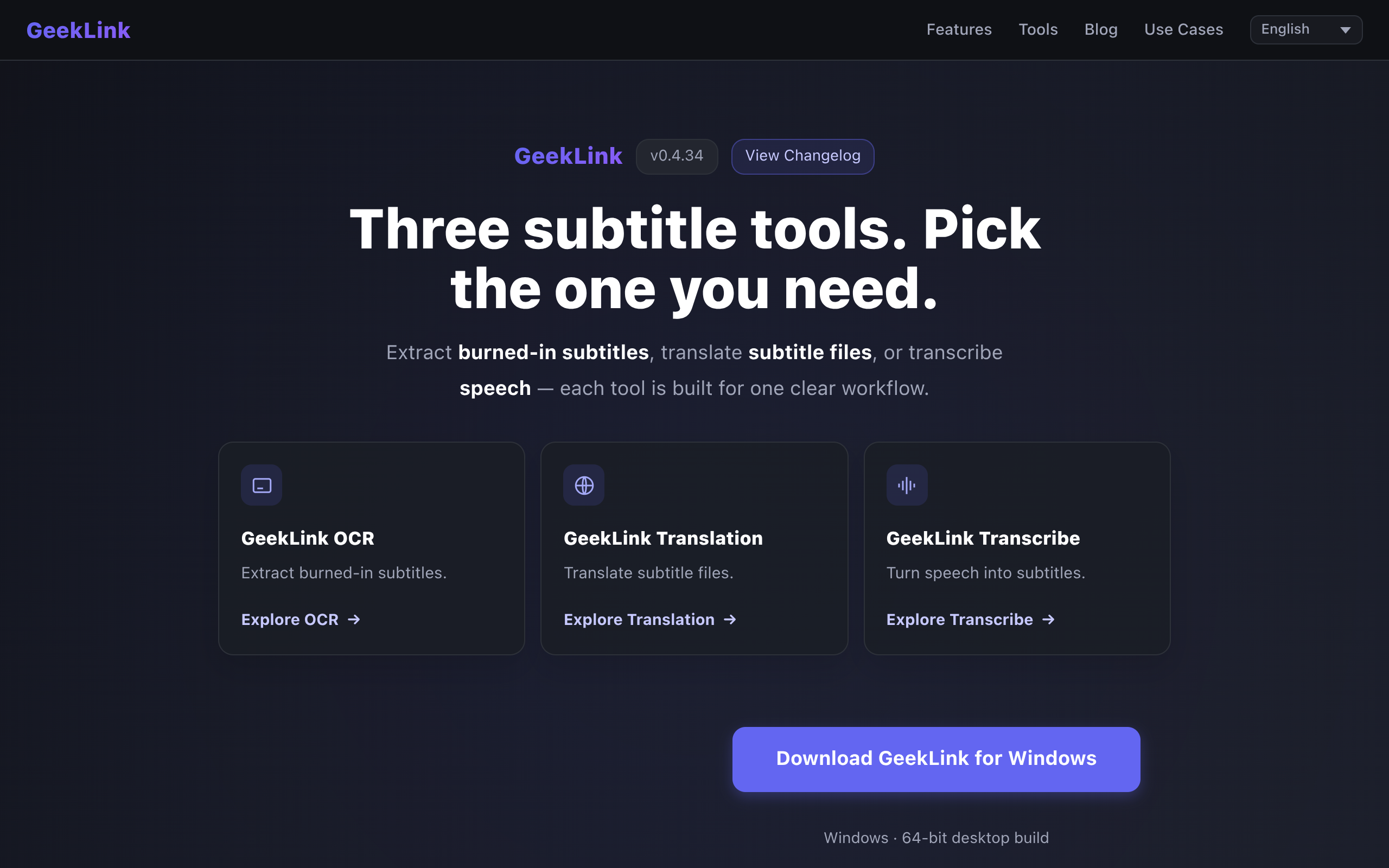
The page presents three separate tools: GeekLink OCR, which extracts burned-in (hardcoded) subtitles from video, even without an audio track; GeekLink Translation, which translates subtitle files into 40+ languages; and GeekLink Transcribe, which turns speech into subtitles.
System requirements are specific. The macOS build requires macOS 13.0 (Ventura) or later and Apple Silicon (M1, M2, M3 or M4) only; Intel Macs are not supported. A 64-bit Windows desktop build is also offered. A permanent free tier exists: speech recognition, subtitle editing, batch processing and SRT/TXT export are free forever, with exports carrying a small GeekLink credit, plus 60 minutes of OCR export per month and no account required. Every new install also starts a 7-day trial of all Pro features without sign-up or login.
Download and install the desktop build for macOS or Windows, then open the app to begin the automatic 7-day Pro trial. Import one or several videos for batch processing and choose the workflow that fits the task: OCR for burned-in subtitles, Transcribe for speech, or Translation for existing subtitle files. Speech recognition and subtitle recognition require an internet connection on first use to download models; afterwards both work offline. AI translation uses a cloud API (DeepSeek) and therefore requires internet. After processing, export soft subtitles as SRT or TXT, or produce burned-in subtitles. To continue on Pro after the trial, click "Activate" in the top-right corner and enter a license key. Updates can be applied via "Check for updates" and then "Update & Restart" in the app.
Detects and extracts hardcoded or burned-in subtitles from any video, even when no audio track is present. The page notes particularly strong recognition of Chinese subtitles.
Converts speech to subtitles across 40+ languages with word-level timing. Batch video processing is supported, allowing dozens of videos to be imported at once.
Translates subtitle files into 40+ languages, including English, Chinese, Japanese, Korean, French, German, Spanish, Russian, Arabic, Italian, Portuguese, Dutch and Turkish. AI translation uses a cloud service and requires internet.
Exports soft subtitles as SRT or TXT, and supports subtitle burn-in. Free-tier exports carry a small GeekLink credit.
The site states processing is local, so videos do not leave the computer, and that batch processing is available across the workflow: speech recognition, OCR, AI translation and subtitle burn-in.
Available for macOS 13.0+ on Apple Silicon (M1/M2/M3/M4) and as a 64-bit Windows desktop build. Intel Macs are explicitly not supported.
Users can recover subtitle text that is permanently rendered into a video, which is useful when separate subtitle files are unavailable.
Speech can be converted into timed subtitle files suitable for editing and export.
Existing subtitle files can be translated into one of 40+ supported languages, using a cloud AI translation service.
Editors working with many videos at once can import them in bulk and run recognition, OCR, translation and burn-in without uploading footage externally.
Once speech and OCR models are downloaded, recognition tasks continue to work without internet; only AI translation remains dependent on a connection.
Yes, there is a permanent free tier. Speech recognition, subtitle editing, batch processing and SRT/TXT export are free, with a small GeekLink credit on exports, and include 60 minutes of OCR export each month. Every new install also includes a 7-day trial of all Pro features. Pro adds unlimited OCR export, AI translation and clean, unbranded exports.
Speech recognition and OCR run locally and require internet only on first use to download models; afterwards they work offline. AI translation uses a cloud API and needs an internet connection.
There are desktop builds for Mac and Windows. The Mac build requires macOS 13.0 Ventura or later and Apple Silicon (M1, M2, M3 or M4); Intel Macs are not supported. The Windows build is 64-bit.
Yes. Its OCR engine can detect and extract hardcoded (burned-in) subtitles from a video, even if the video has no audio track.
For new paid Pro plans, $1 of AI usage equals 200 credits (1 credit = $0.005 of AI usage). The monthly plan includes 1,000 credits, equivalent to $5 of AI usage; the annual plan includes 12,000 credits ($60); and the lifetime plan includes 24,000 credits ($120). Licenses purchased under the previous policy keep their original quota terms.
Yes. The lifetime license is a one-time purchase that includes every future app update at no additional cost, covering new features, performance improvements and new language support, with no recurring fees or upgrade charges. The included 24,000 AI credits do not expire.
GeekLink writes to ~/Library/Application Support/GeekLink/ and ~/Movies/GeekLink Exports/ by default. The site suggests keeping the output path under the user directory, avoiding read-only disks or restricted folders, confirming access under System Settings → Privacy & Security → Files and Folders, copying files from external drives or cloud-synced folders to a local directory first, and quitting and relaunching the app.
The site refers users to its published Refund Policy for eligibility and how to request a refund.
Detects AI writing sentence-by-sentence and rewrites AI-sounding text

AI interview assistant for real-time answers, coding help, and live coaching

AI agent workspace for orchestrating end-to-end marketing workflows
Chat with AI characters in user-created or community-driven scenarios